The following article shows how to load wells into a Player project from a template Excel spreadsheet OR a combination of a template Excel spreadsheet and a shapefile/feature class. This can be used to load proprietary data into a Player project.
The attached Excel file acts as a template for importing well data. Location data (lat/long) can be added to the Excel template or locations can be imported from a wells shapefile or geodatabase feature class. Note, the attribute data is imported from the template Excel spreadsheet so this should be populated with available data using the following workflow.
Format Data
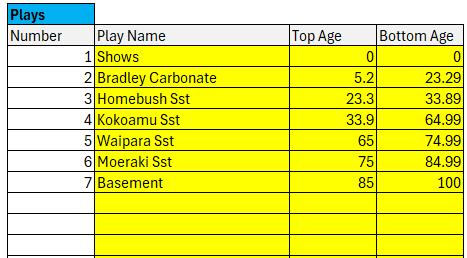
- Open the file and select the first worksheet Setup | BEFORE ENTRY and copy the plays from the Player project to the yellow cells
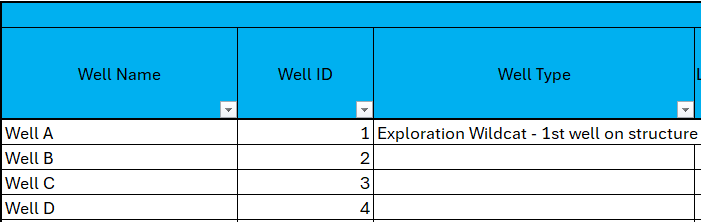
- Select the Well_Headers worksheet and populate Well Name and Well ID with all wells to be imported. Ensure Well ID is unique. Populate the other columns if the data is available.
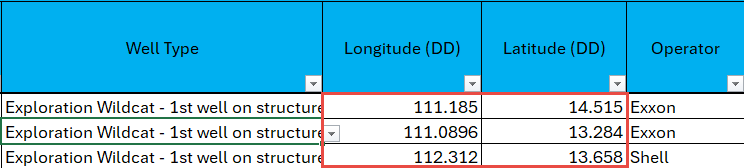
- If loading data from a spreadsheet only, fill in the Longitude and Latitude in decimal degrees. If using a combination of a spreadsheet and shapefile/feature class leave blank.
- Select the Play_Evals worksheet. All the wells will be listed with a row for each play. Add any available play evaluations, using the drop-downs where available. Once complete save and close the worksheet. The data is ready for import.

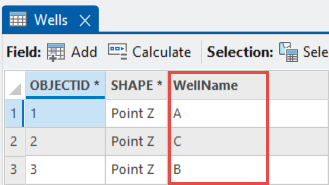
- If using a shapefile/feature class for the location data, rename to Wells and ensure the shapefile or feature class has an attribute field called WellName. This must be populated with exactly the same names as the Excel spreadsheet, so they can be cross-matched. Other attributes may exist but they will not be imported.
Import Data
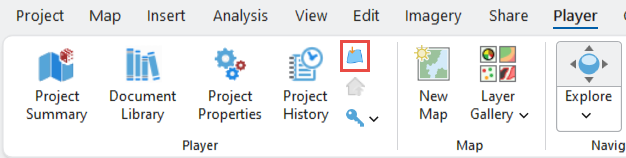
- From the Player ribbon select the Import Wells, Pools, Prospects icon
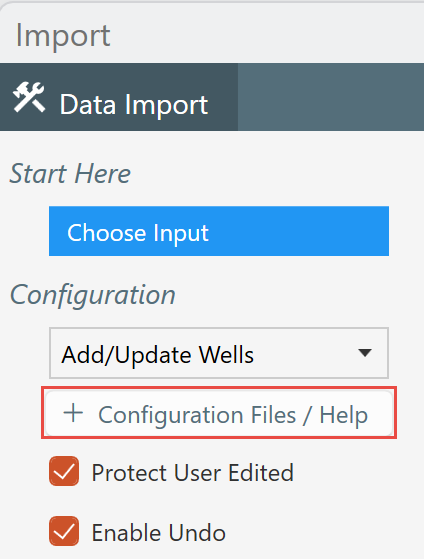
- From the Import dialog select + Configuration Files / Help
- From the Configuration Help navigate to this article and select one of the following configuration files at the bottom of this article:
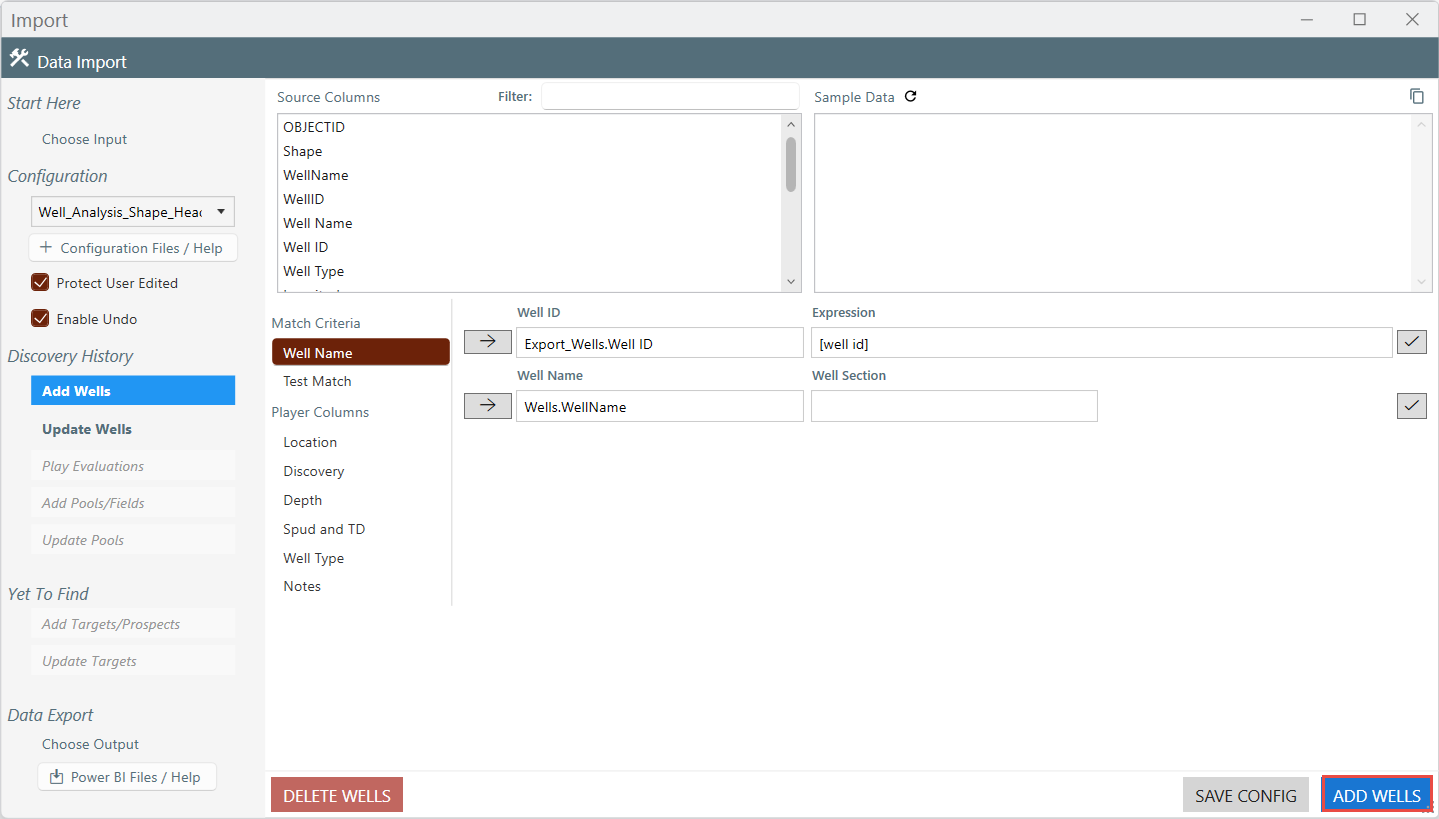
Loading data from a spreadsheet only - Well_Analysis_Excel_Header_Import.json
Loading data from a shapefile/feature class and spreadsheet - Well_Analysis_Shape_Header_Import.json
This file should now be selected from the Configuration drop-down. - From the Source Directory menu select the folder that holds the Well_Analysis_Template.xlsx, and if used, the shapefile/geodatabase to be imported. Select the Area of Interest to encompass the data you want to import (World, Current Map Extent or Project Library Area).
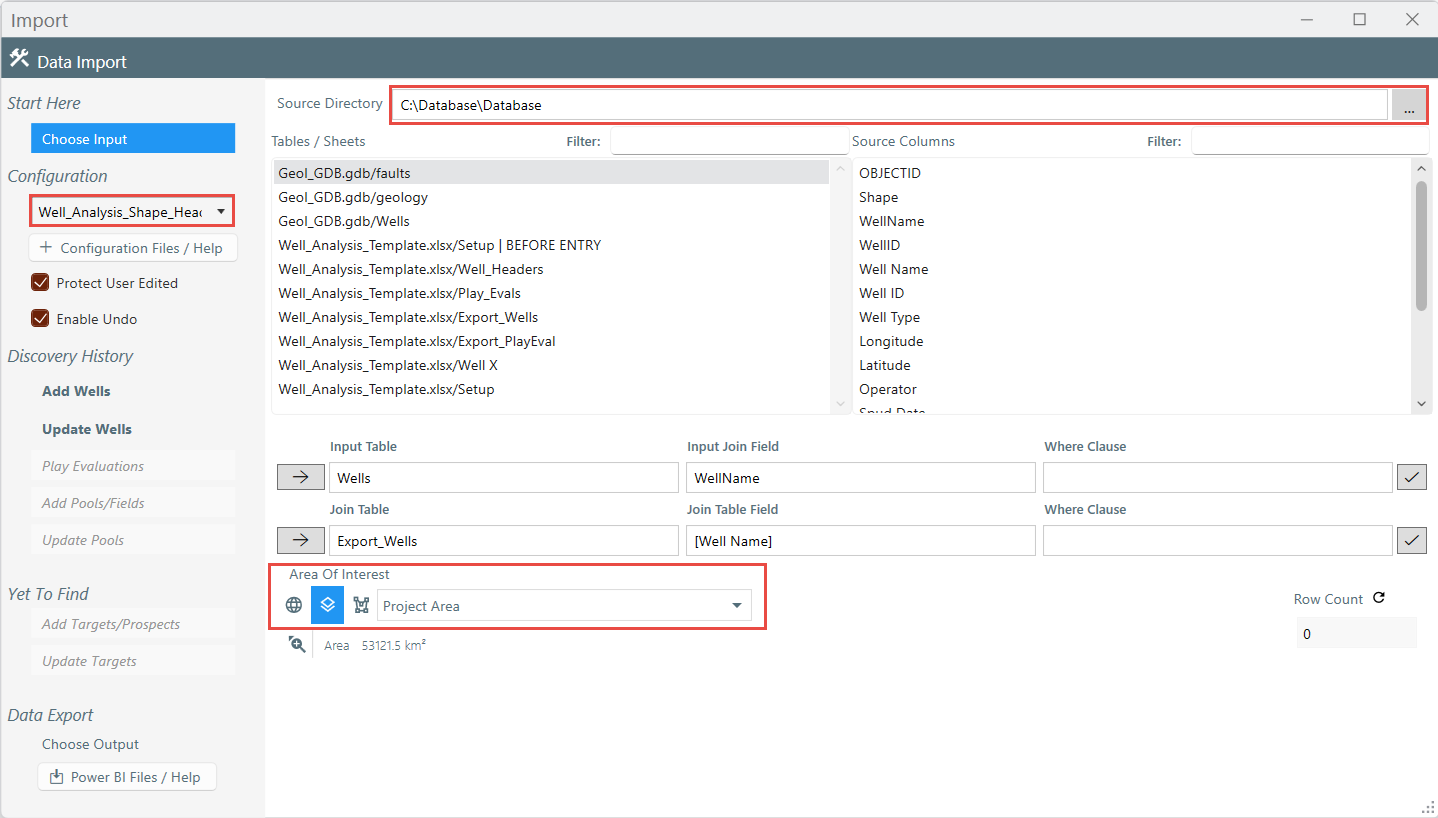
- From the Discovery History select Add Wells. Select the ADD WELLS button to load the wells into Player
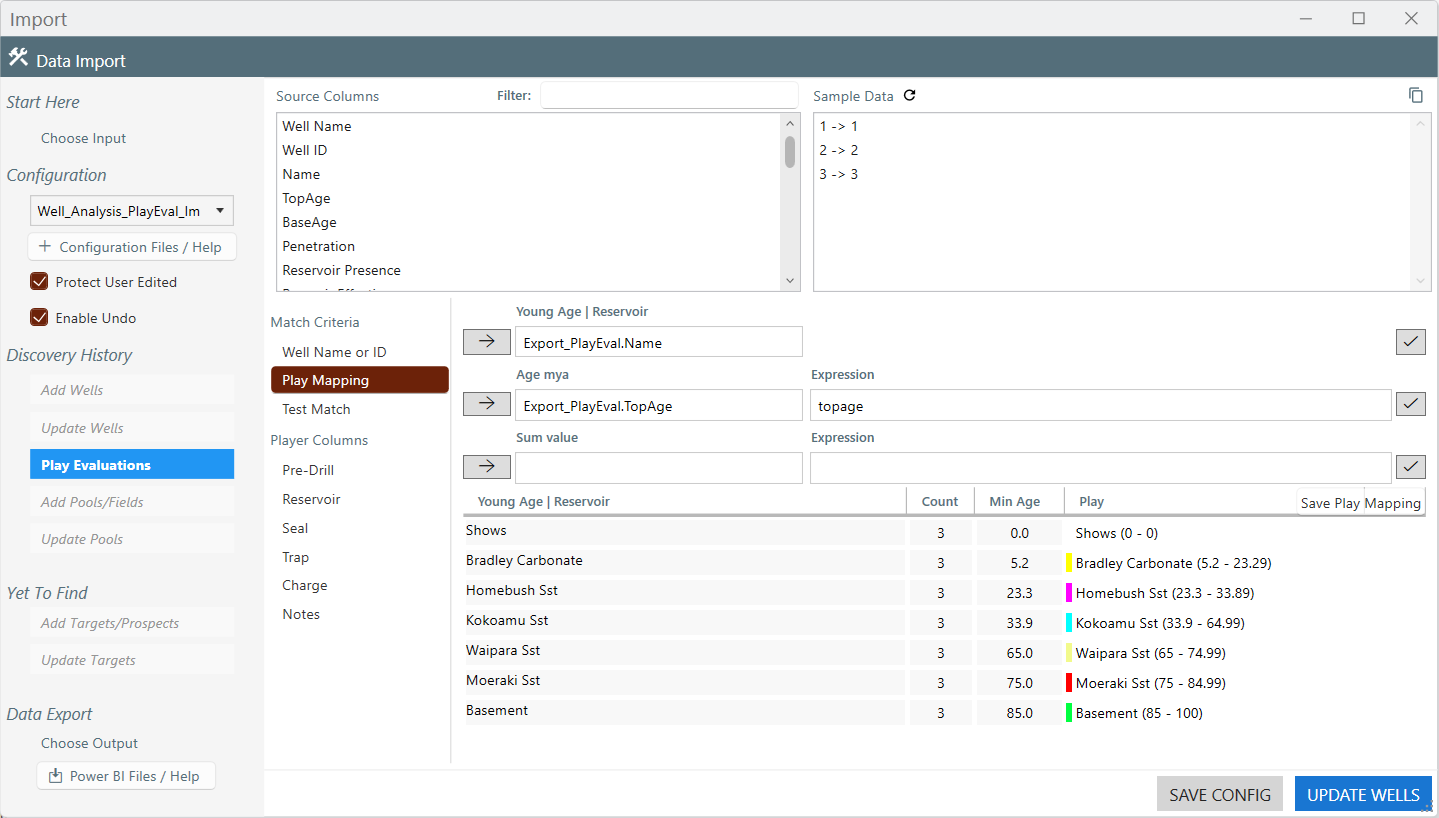
- From the Import dialog select + Configuration Files / HelpFrom the Configuration Help navigate to this article and select Well_Analysis_PlayEval_Import.json
This file should now be selected from the Configuration drop-down. - From the Discovery History select Play Evaluations. From the Match Criteria select Play Mapping and select one of the ticks on the right side. This will populate the table with the play definitions from the source data on the left and the Player plays on the right. If the Excel spreadsheet has been filled in correctly these should match. Select the UPDATE WELLS button to load play evaluations. Close dialog.
- Save from the Player ribbon. The data has now been imported