Applies to: Player 5.5, 5.6, 5. for ArcGIS Pro
This article outlines the workflow to import polygons from an external shapefile or feature class into a Common Risk Segment layer (CRS) in the Player database. A typical application would be to import a Gross Depositional Environments (GDE) map into a CRS layer using the environments to allocate risk values.
Workflow:
- Open the Risk Manager from the Player ribbon

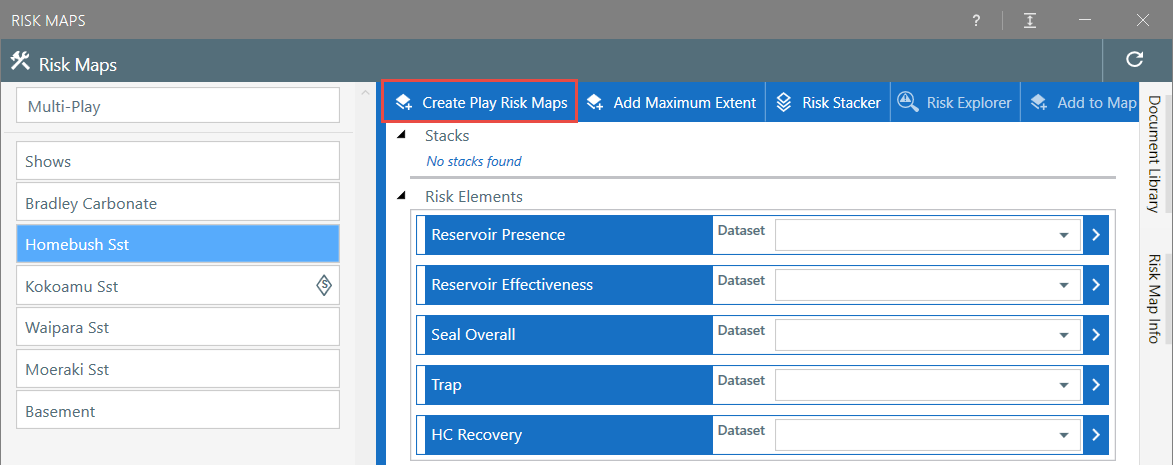
- Select the play from the left window. If the Dataset already exists and has been set for the Risk Element go to point 4. If there are no Datasets populated for the Risk Elements and they are not available for this play from the drop-down, the required layer will need to be created by selecting 'Create Play Risk Maps'.
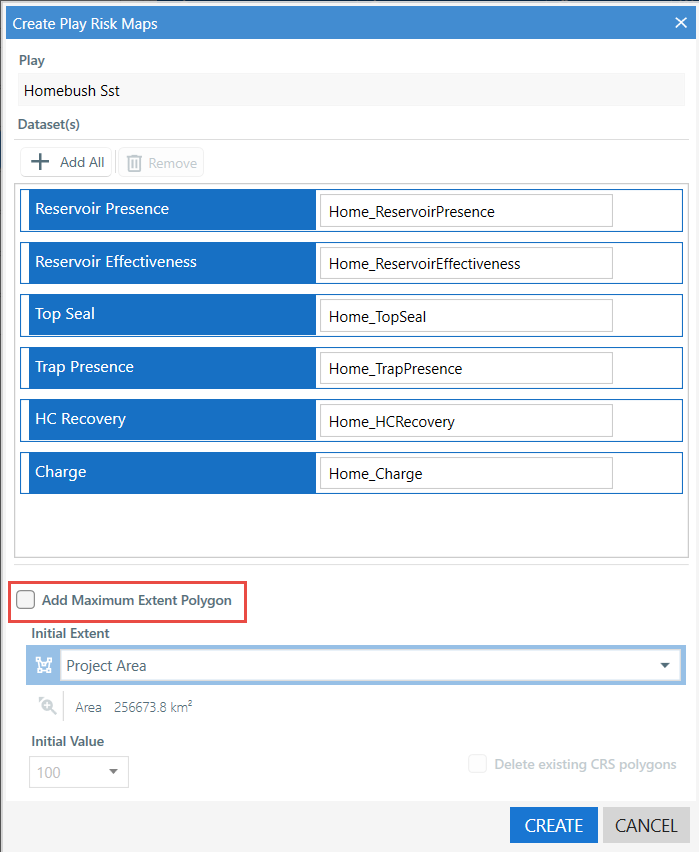
- The Dataset names will be auto populated. Untick 'Add Maximum Extent Polygon' (we want an empty dataset to load data into). Select Create (this will create the layers in the database). When the process has finished close the Create Play Risk Maps dialog.
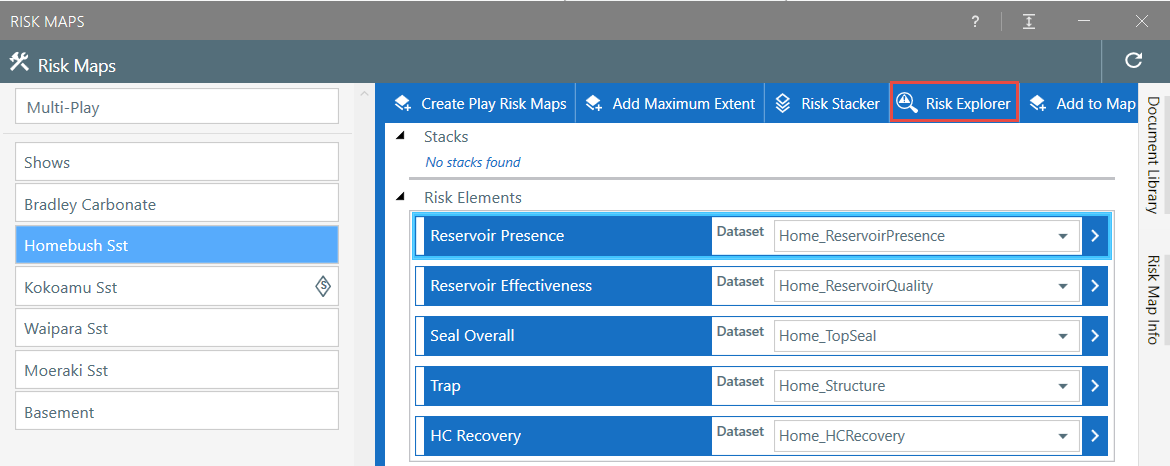
- Select the Risk Element that polygons are to be loaded into and select 'Risk Explorer'. Close the Risk Maps dialog.
- The Risk Explorer should now be visible in the Map Window. From the leftmost drop-down 'Add Layer To Map'.

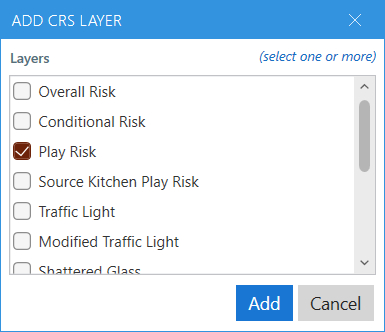
- Tick Play Risk from the dialog and 'Add'
- If the Risk Elements layer is empty go to step 8. If the layer has polygon(s) already defined that are not needed (for example, it has a default polygon for the project area) then polygons will need to be deleted before importing. To do this select any rows in the Risk Explorer (Cntrl+A to select all)
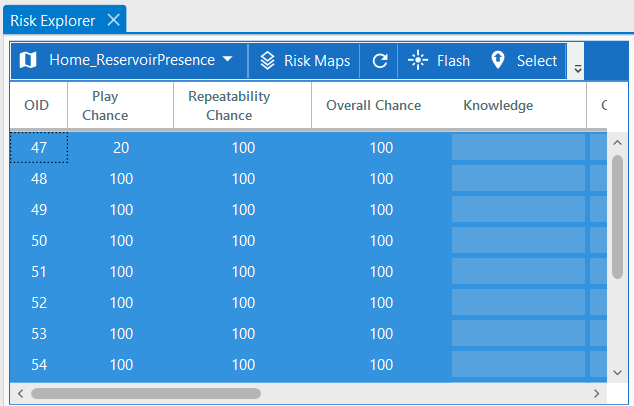
and on the Player Ribbon in the Features section select Delete.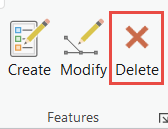
then Save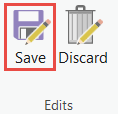
- Select Load Data from the Risk Explorer dialog

- The Geoprocessing Append dialog will open. Configure the tool as follows:
- For the Input Dataset select the layer that has the polygons to import
- From Field Map > Output Fields select SegmentName
- From Source select 'Add New Source' and tick the attribute column that holds the names of the polygons that can be converted to risks, then select 'Add Selected'
Run the tool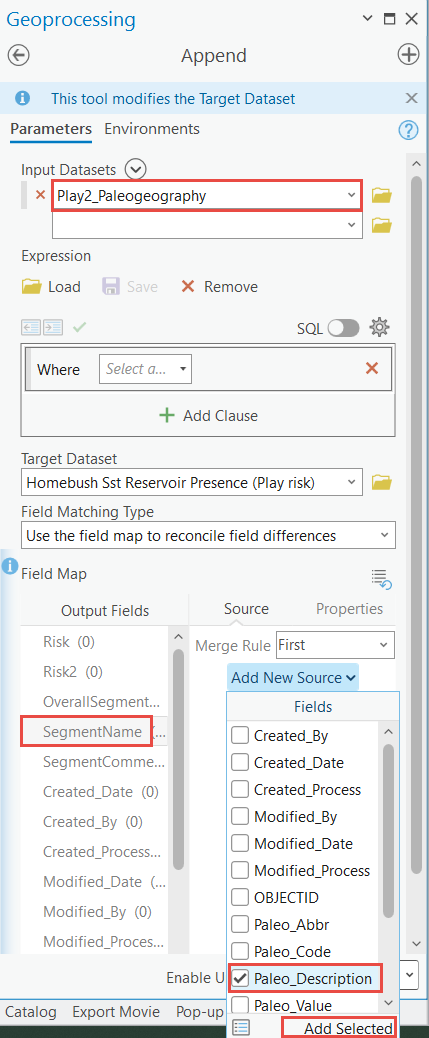
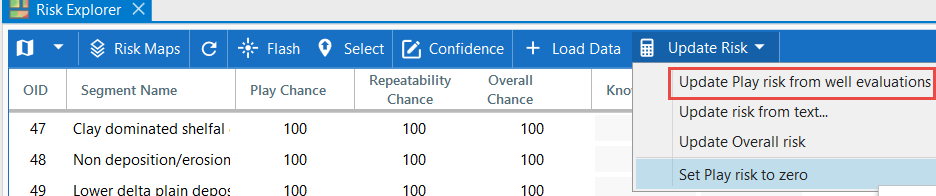
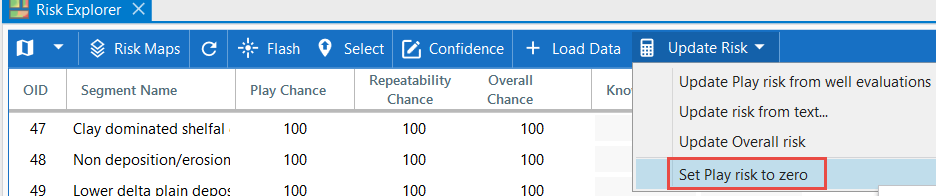
- On completion of the Append process, from the Risk Explorer dialog select Reload and then Update Risk and 'Set Play risk to zero' from the drop-down (this sets the Play Chance and Overall Chance to zero).
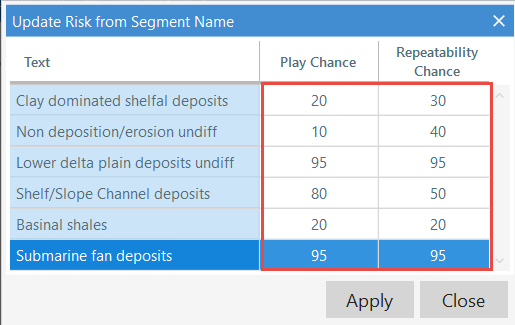
- From the Risk Explorer dialog select Update Risk > 'Update Play risk from text' from the drop-down. The dialog will open with the Segment Name values summarized in the Text column. These can be used to allocate both Play and Repeatability risks (example below). Enter values for any risks you want to allocate (all boxes do not need to be filled in). Apply to allocate risks to the CRS layer.
- If you wish to make the play risk 100 for any CRS polygon that contains a well that penetrates the risk element (thereby confirming the risk elements presence), then from the Risk Explorer dialog select Update Risk and 'Update Risks from Well Evaluations' from the drop-down.