Applies to: Player 5.7
This article outlines the workflow to create a new target for an existing prospect. The target can either be digitised directly as part of the workflow, or copied from an external shapefile/feature class. Note, this workflow was changed at Player 5.7 to include the Merge function.
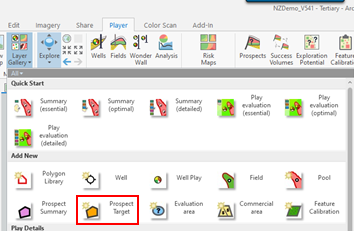
- Using the Player Layer Gallery Add New > Prospect Target
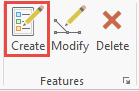
- Select Create Features
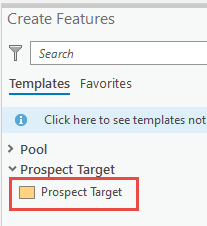
- Either, select Prospect Target from the Create Features Templates and digitize a shape,
 OR, copy the prospect shape from another layer and Paste Special > Layer > Prospect Target > OK > Finish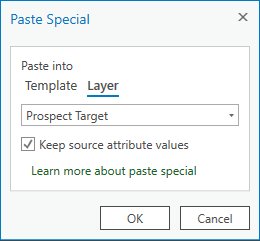
- Open the Player Prospects dialog and the newly created, and as yet unnamed, prospect will appear at the top of the prospect list. Go into the prospect - Player will ask you to Validate, so Validate > Close Validation and open the new prospect again.
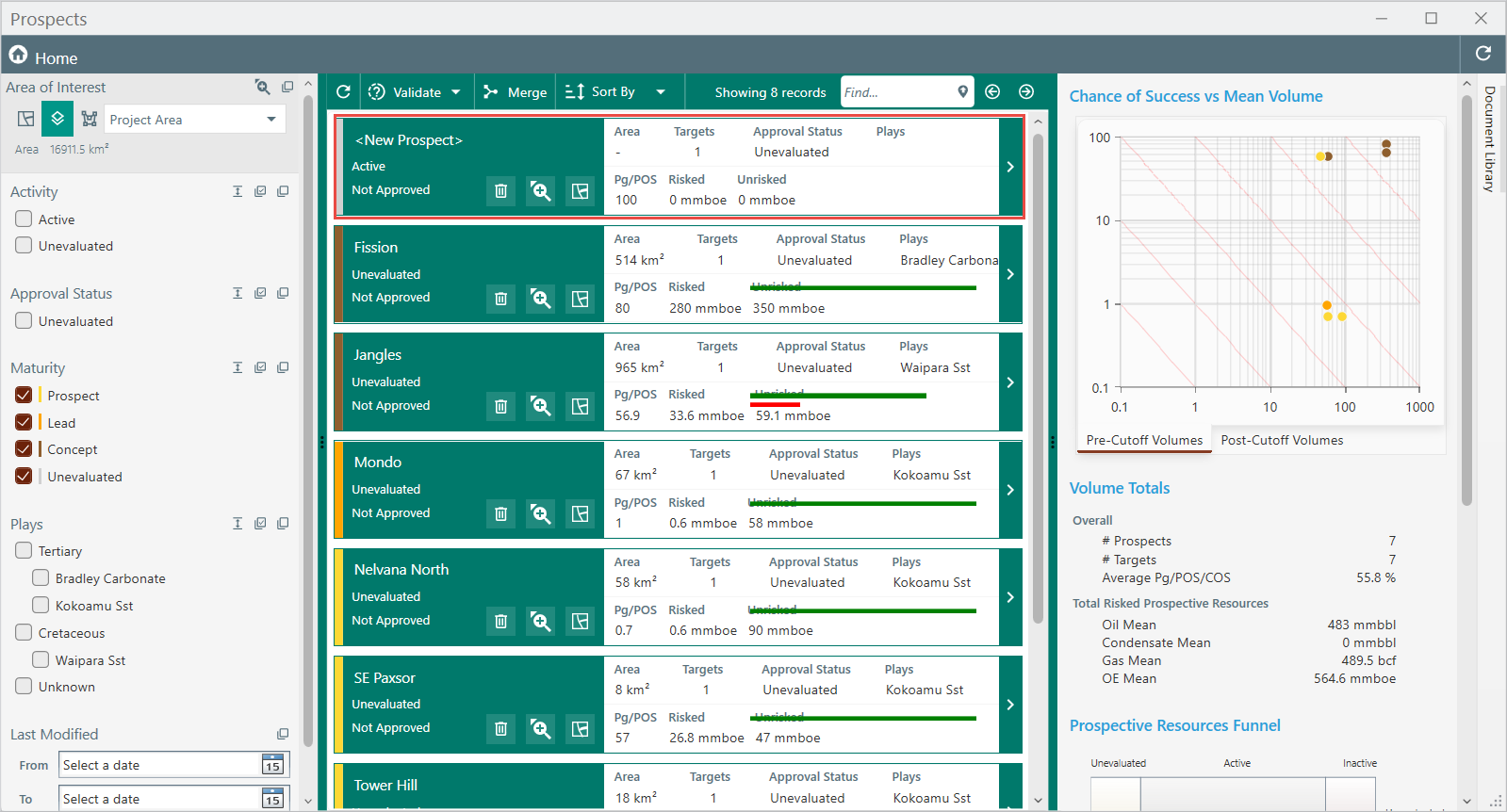
- Enter the name of the prospect (this should be the same as the existing prospect name) and Apply.

- Return to Prospects Home and there should now be 2 prospects with the same name - select both to highlight, using the Control key. Then select Merge and OK.
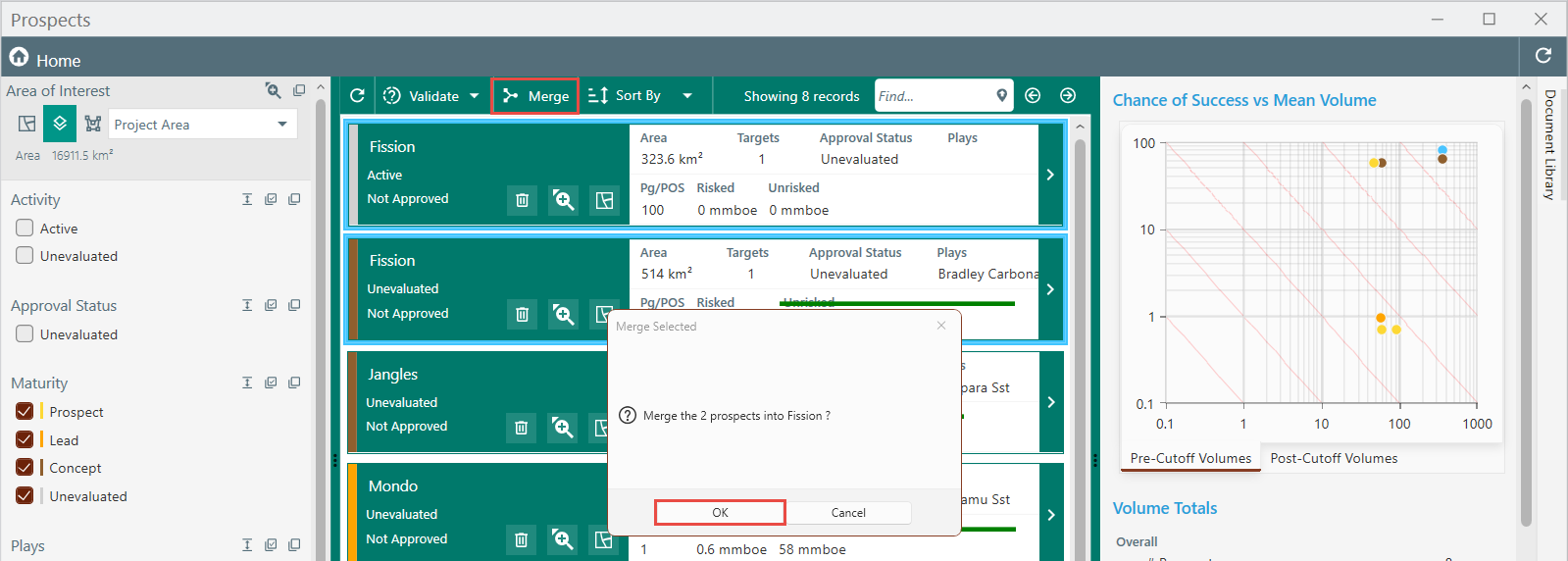
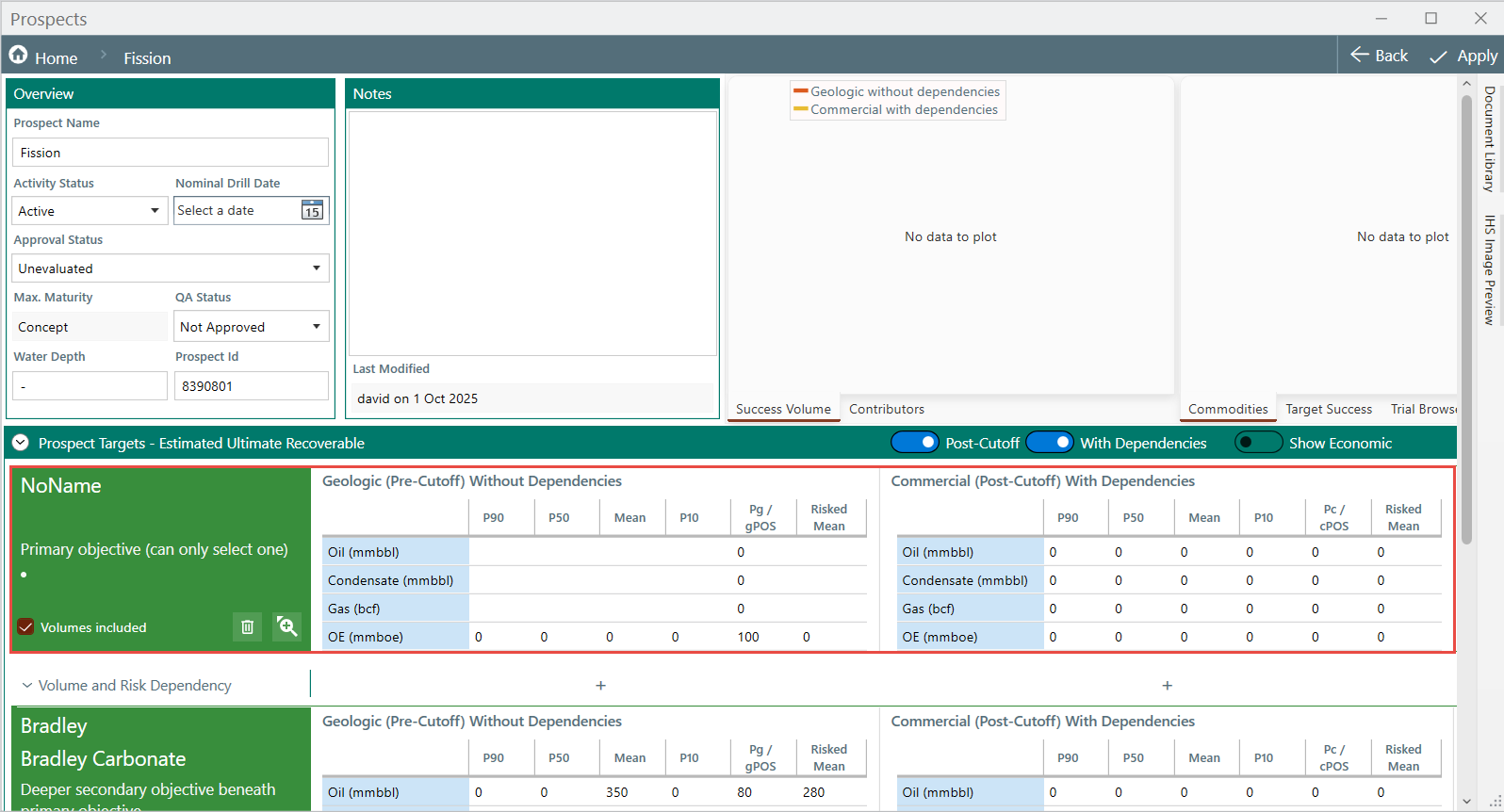
- Go into the prospect - the new target has now been added to the prospect. Go into the target and add details, such as the target play and an appropriate name.