Applies to: Player 5.6/5.7 for ArcGIS Pro
This article outlines how a Player project is organised and its structure, focusing on the key components that define how it is built, stored, and presented to the end user.
Player File Structure
Typically a Player project starts life by creating a new ArcGIS Pro project. Pro will create a number of files in the project folder by default. Viewed in File Explorer a ArcGIS Pro project will create a number of files and folders, including an aprx file (stores the maps and layers), atbx file (container to create geoprocessing tools) and a geodatabase (container to create datasets), all with the same name as the project. The geodatabase (gdb) can be confusing if the project is created with Player in the name, as the gdb will share this name, but it will not be used by Player.
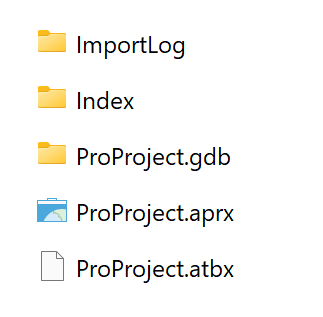
Following creation of the ArcGIS Pro project, the Player Create a New Project wizard can be launched from the Player ribbon. This wizard initializes the required structure for a Player project. As part of this process, a Player file geodatabase is created (if not using an existing database). All data used by Player is stored within this single geodatabase. Because the wizard executes geoprocessing operations, ArcGIS Pro also creates a GPMessages folder.
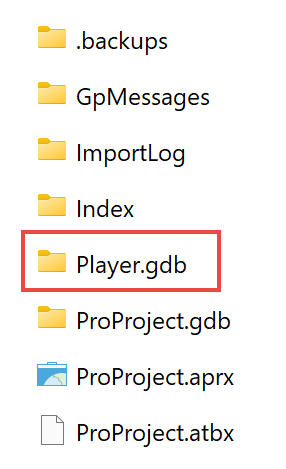
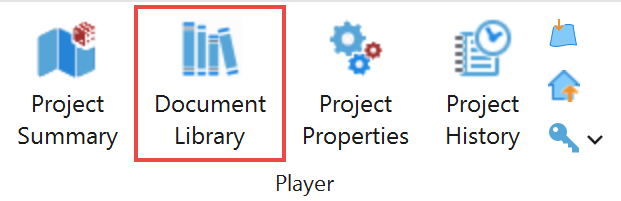
All Player data is stored in the Player.gdb (this is the default name, it can be called something else), with the exception of external files held in the Document Library. This library is used to store supporting documents that are referenced from the Wells, Fields, Prospects, Risk Maps, and Exploration Potential dialogs. The storage DocLibrary folder will be created in the project folder by opening the Document Library dialog.
Player Database Structure
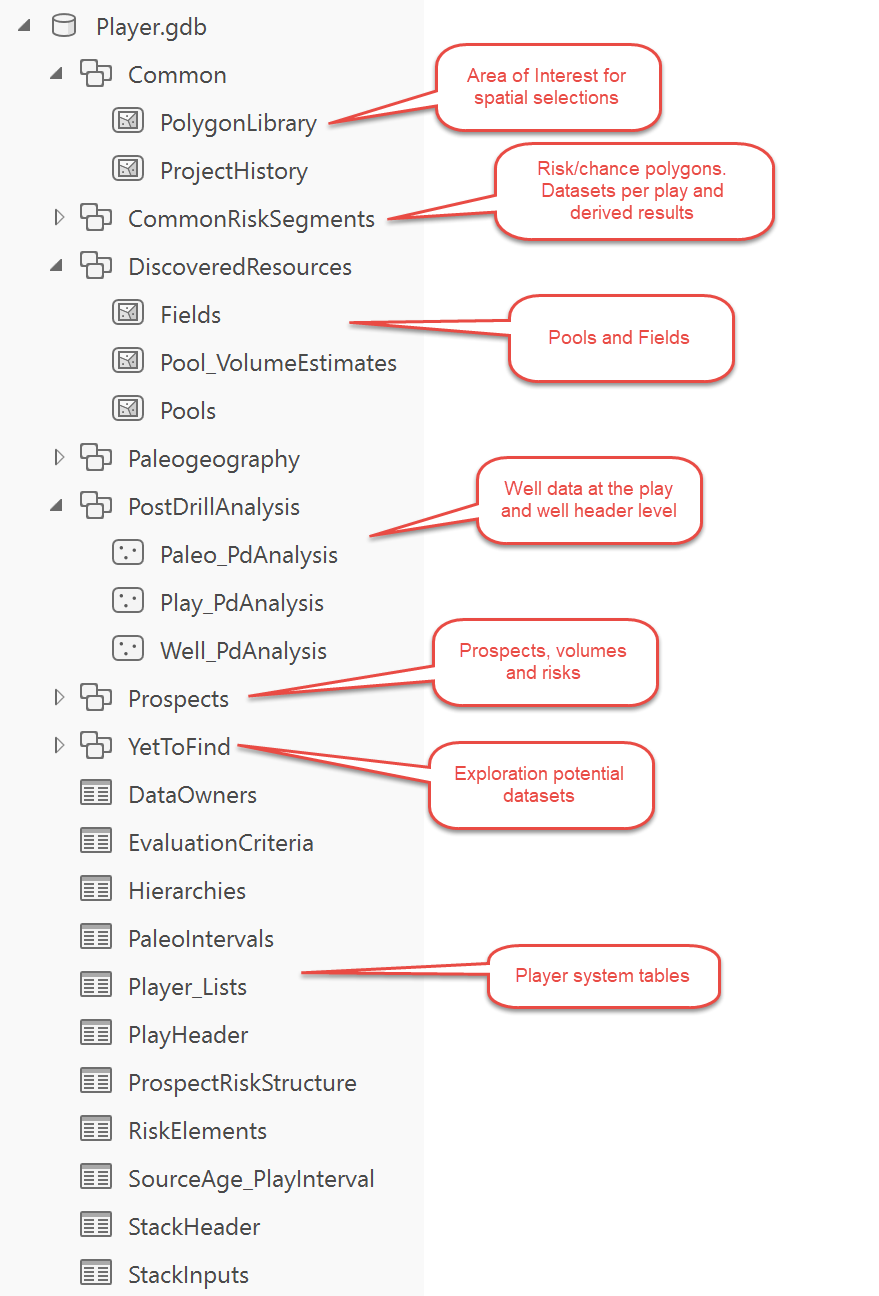
All Player data is contained within a single database (either a File Geodatabase or Arc SDE). The data is stored as simple point and polygon feature classes. Player handles all reading and writing to the database via the Player dialogs. Care needs to be taken if editing and changing the databases directly as this can cause unwanted data issues. The structure of the database is as follows (note, the Paleogeography feature dataset is no longer used by Player):
Maps and Layers
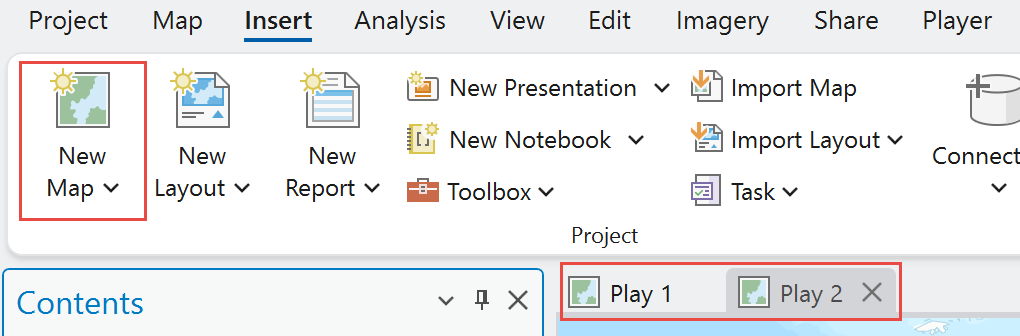
Any number of maps can be created within the project using Insert > New Map. All maps are accessible within the Player project, allowing the project to be organised into logical groupings—for example, separate maps for different plays.
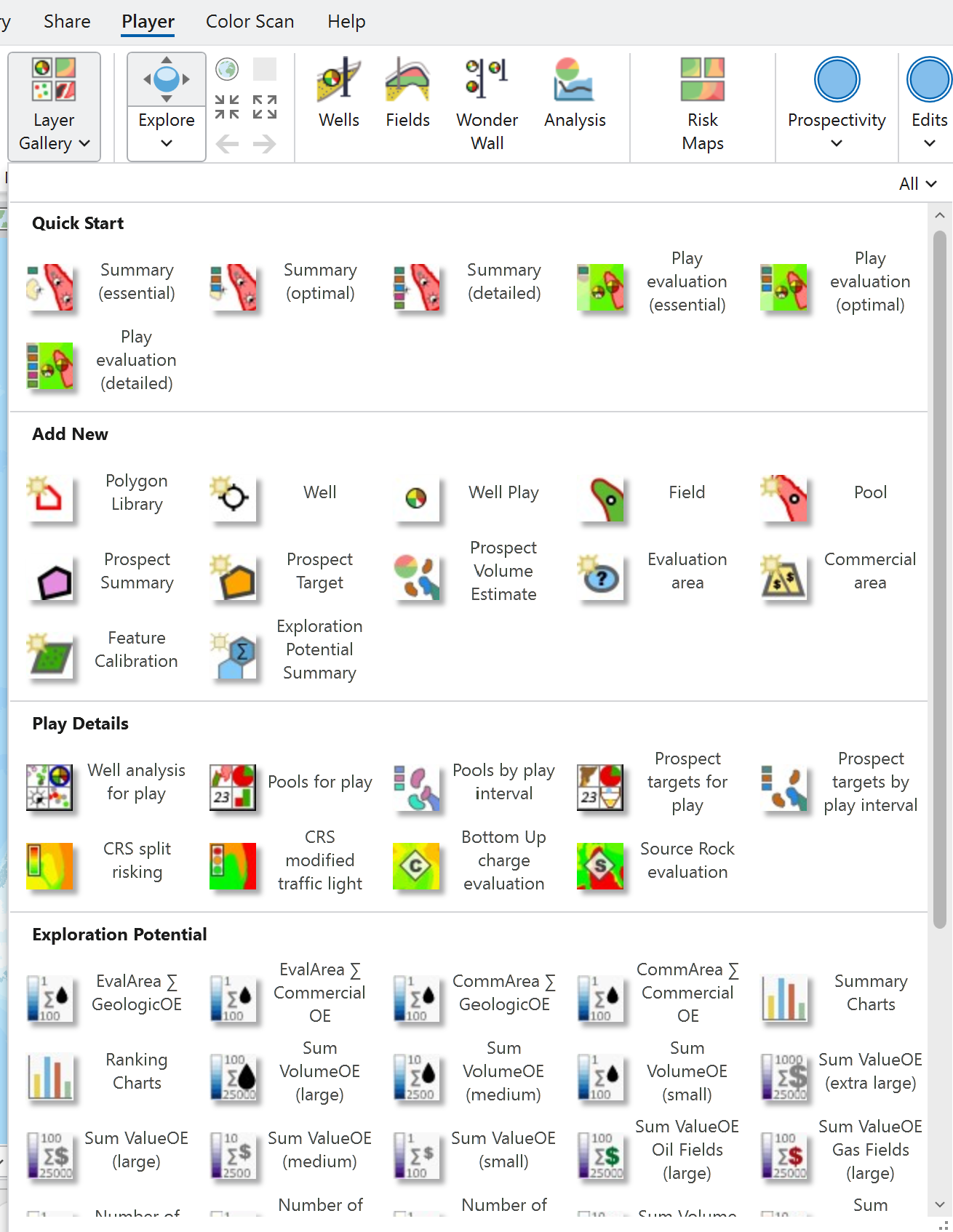
Player spatial data layers are added to maps via the Layer Gallery on the Player ribbon. This allows spatial data to be loaded into the map as needed.